أداة فيديو بالذكاء الاصطناعي
إزالة خلفية الفيديو
أزل خلفية الفيديو عبر الإنترنت بالذكاء الاصطناعي، ثم صدر قصا نظيفا للموضوع مع شفافية أو لون ثابت أو خلفية مرئية مخصصة.
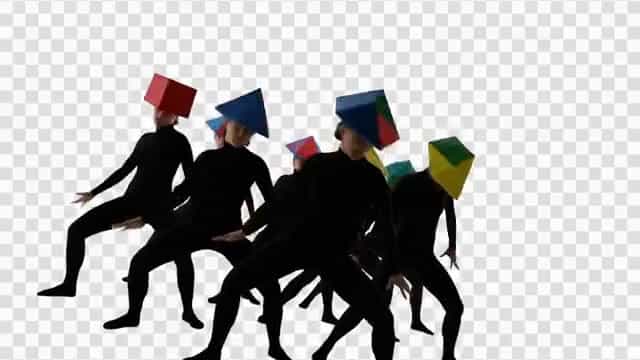
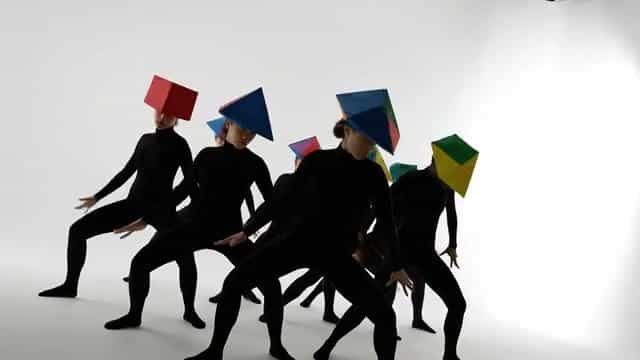
أزل خلفية الفيديو في ثلاث خطوات
تركز هذه الصفحة على المهمة نفسها: ارفع مقطعا، أزل الخلفية، واختر الإخراج المناسب للخطوة التالية.
ارفع فيديو
ابدأ بمقطع MP4 أو MOV أو WebM. لا تحتاج إلى شاشة خضراء أو أقنعة يدوية أو تحرير إطار بإطار.
أزل الخلفية
يفصل الذكاء الاصطناعي الأشخاص والحيوانات والكائنات عن المشهد لتعاين قصا نظيفا في المتصفح.
صدر أو استبدل
نزل نتيجة شفافة للتركيب، أو ضع الموضوع فوق لون ثابت أو صورة أو فيديو.
خيارات الإخراج
اختر الشفافية أو خلفية نهائية
الشفافية قوية، لكنها ليست دائما التنسيق الصحيح لكل وجهة. اختر حسب تدفقك النهائي.
الإخراج الشفاف هو الأفضل للتركيب في المحررات والقوالب والرسوم المتحركة.
الخلفيات ذات اللون الثابت أو الصورة مفيدة عندما تحتاج إلى تصدير نهائي بسرعة.
MP4 هو الخيار الأكثر أمانا للتشغيل الواسع، بينما تنسيقات alpha أفضل عندما تهم الشفافية.
مصمم للمبدعين والمحررين وفرق التسويق
استخدم نفس مسار الرفع للمقاطع الاجتماعية السريعة أو الأصول الشفافة القابلة لإعادة الاستخدام أو إبداع الحملات.
فيديوهات المبدعين
حول مقاطع الهاتف إلى فيديوهات اجتماعية ودروس ومقدمات وردود نظيفة بدون إعداد استوديو.
المنتجات والإعلانات
ضع العروض والمتحدثين ولقطات المنتج على خلفيات العلامة للحملات وصفحات الهبوط والإعلانات.
تدفقات التحرير
أنشئ أصولا صديقة للشفافية يمكن تركيبها لاحقا في المحررات والقوالب وتجارب الويب.
أسئلة إزالة خلفية الفيديو
ما هو مزيل خلفية الفيديو؟
هو أداة تستخدم الذكاء الاصطناعي لعزل الموضوع الرئيسي في الفيديو وإزالة المشهد خلفه. مع Unscreen Pro يمكنك الرفع والمعاينة والتصدير بخلفية شفافة أو مخصصة.
هل أحتاج إلى شاشة خضراء؟
لا. الصفحة مصممة للقطات العادية، بدون شاشة خضراء أو روتوسكوب يدوي أو أقنعة إطار بإطار.
ما تنسيقات الفيديو التي يمكن رفعها؟
يدعم التطبيق تنسيقات شائعة مثل MP4 وMOV وWebM. يعتمد خيار التصدير على حاجتك إلى التوافق الواسع أو الشفافية.
هل يمكنني تصدير فيديو بخلفية شفافة؟
نعم. اختر إخراجا يدعم alpha عندما تحتاج إلى شفافية للتركيب، واستخدم MP4 عندما تريد أوسع توافق تشغيل.
ما الفرق بين هذه الصفحة والصفحة الرئيسية؟
تركز هذه الصفحة على تدفق إزالة الخلفية: الرفع، الإزالة، الاستبدال، والتصدير. الصفحة الرئيسية أوسع وتغطي العلامة والهجرة والأسعار والثقة.
أزل خلفية الفيديو بالذكاء الاصطناعي
ارفع مقطعا، عاين القص، واختر الخلفية أو الإخراج الشفاف المناسب لمشروعك.