محرر كائنات الفيديو بالذكاء الاصطناعي
ارفع فيديو، صف التغيير، واستخدم الذكاء الاصطناعي لتحرير الكائنات الظاهرة أو استبدال المشاهد أو إضافة مؤثرات خفيفة أو إنشاء معاينة إعلان قصيرة.
الرفع والمطالبة
ارفع الفيديو
اسحب مقطعا قصيرا هنا أو اختر ملفا.
المطالبات البسيطة والمحددة تعمل أفضل لتحرير الكائنات وتغيير المشاهد.
معاينة النتيجة
تظهر عينة هنا قبل رفع الفيديو.
مصمم لتدفقات عمل المبدعين والتسويق وفيديوهات المنتجات
كتابة مطالبة أسرع من إعادة بناء المشهد يدويا
التحرير التقليدي يحتاج إلى أقنعة وإطارات مفتاحية واستبدالات وضبط توقيت. يحافظ Unscreen Pro على تدفق أبسط: ارفع الفيديو، اختر إعدادا، ثم صف التغيير.
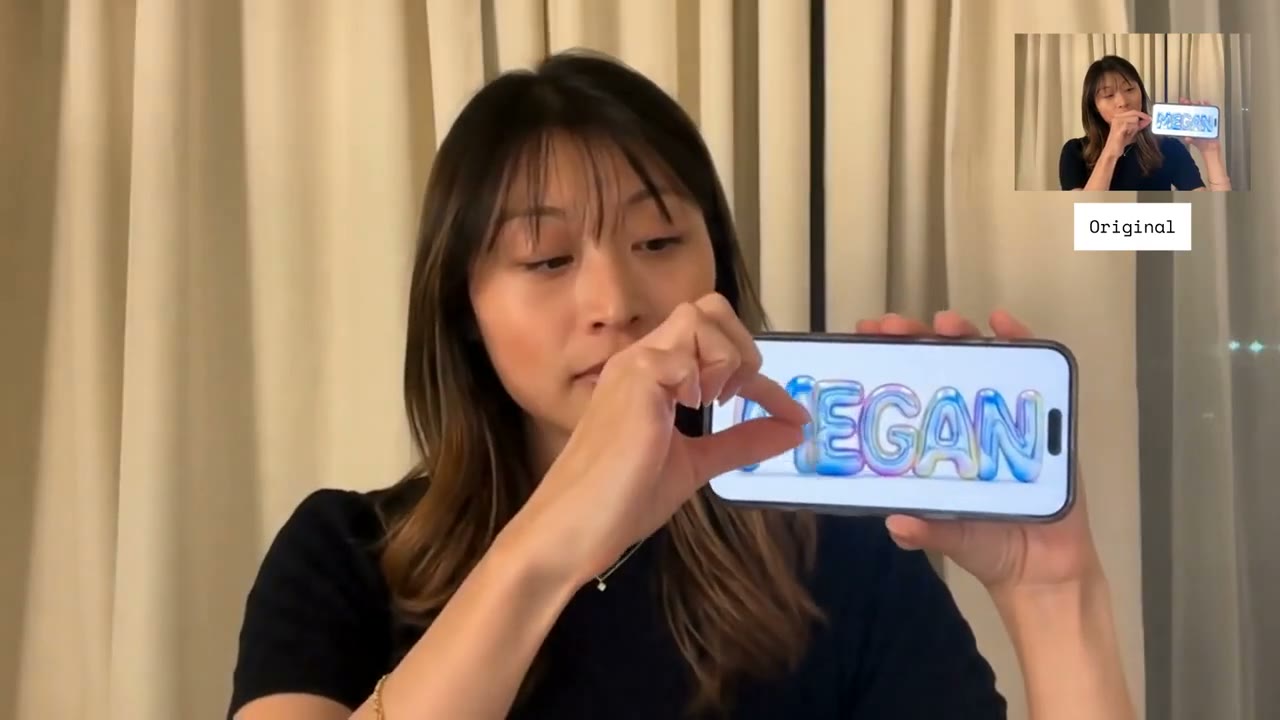
معاينات قصيرة لاتخاذ اتجاه إبداعي بسرعة
ابدأ بمقطع قصير، اختبر تغييرا واحدا، ثم صدر الاتجاه النهائي عندما يبدو مناسبا.
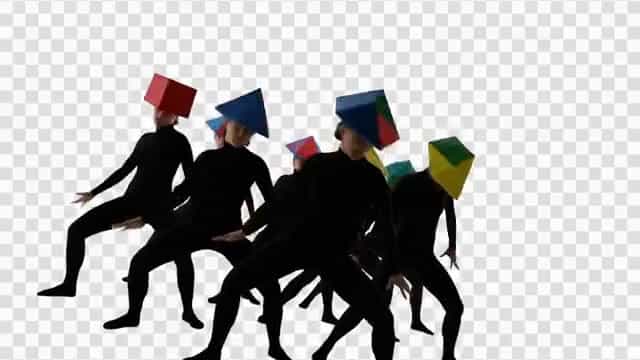
الإدخال
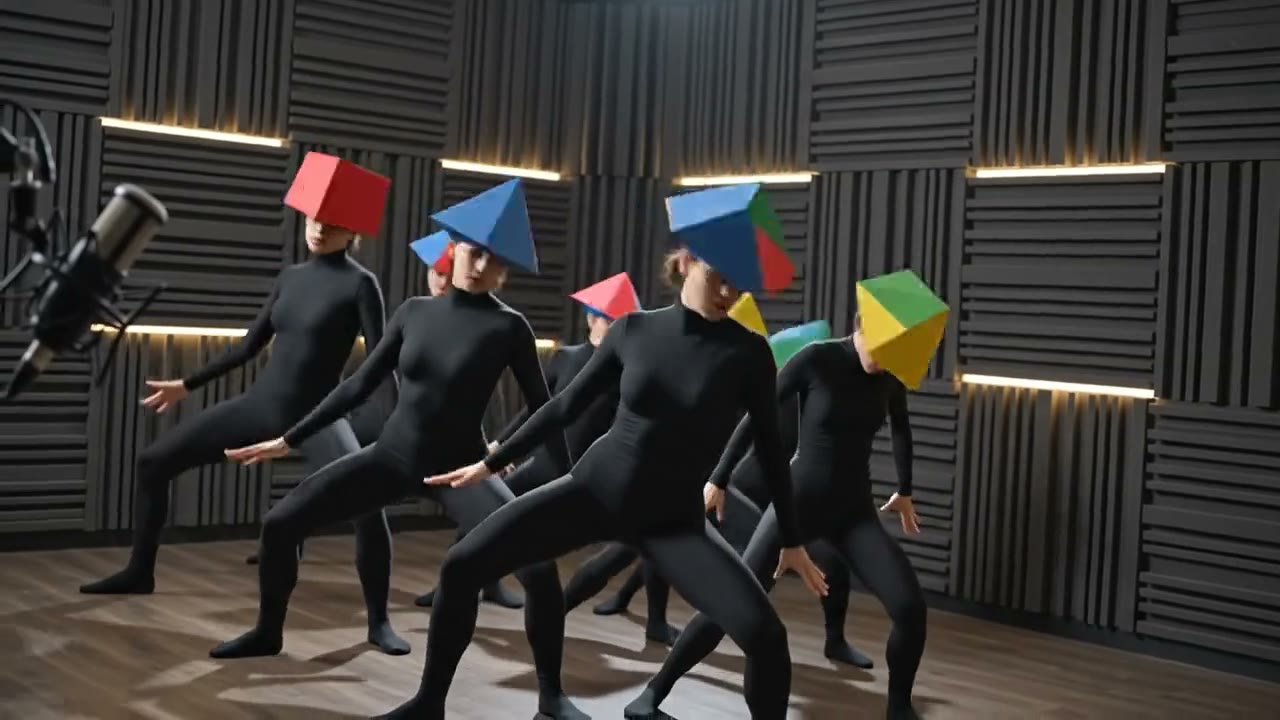
بعد
استبدال المشهد
يتحول المقطع إلى بيئة استوديو واقعية مع إضاءة وظلال.
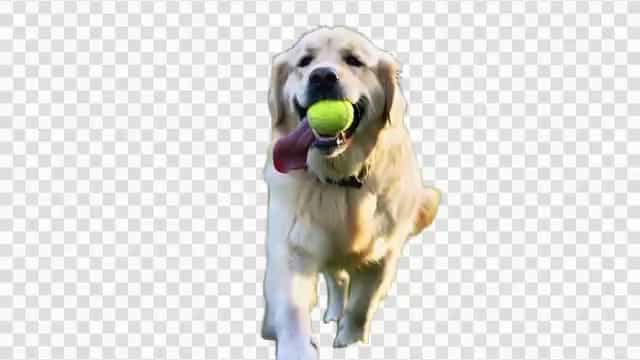
الإدخال
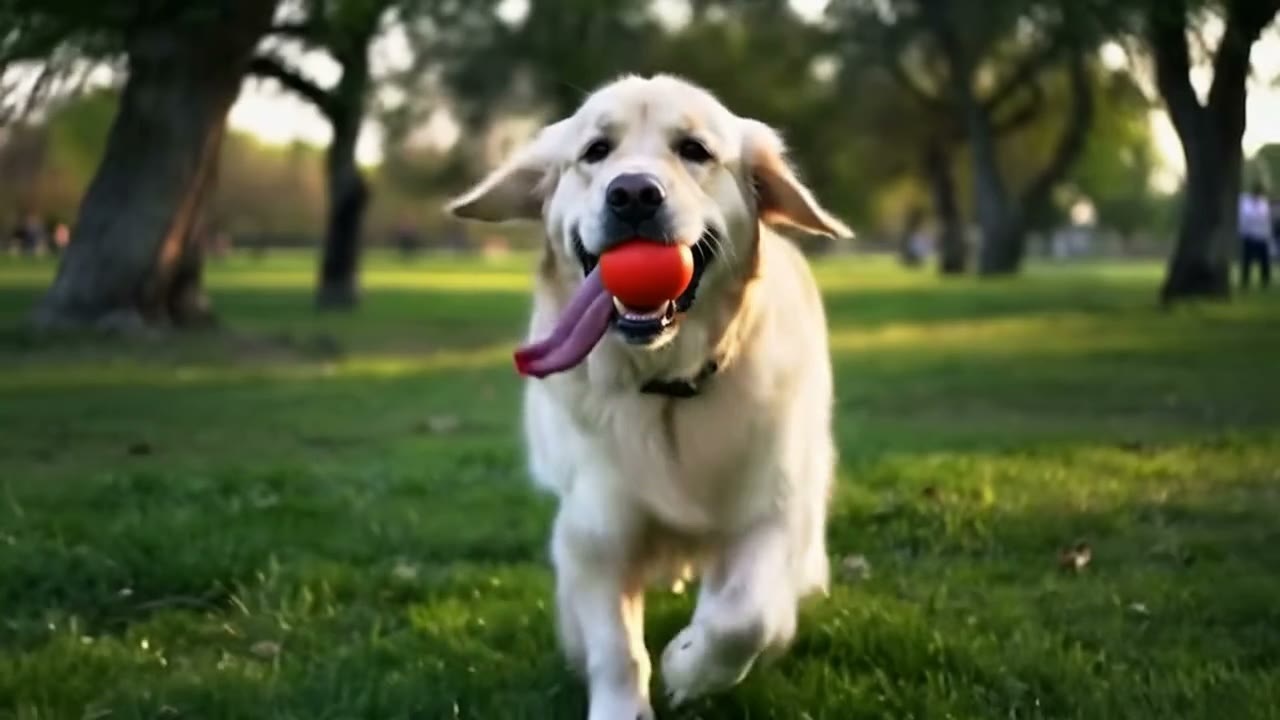
بعد
تحرير كائن
يتغير كائن ظاهر واحد مع بقاء حركة الموضوع طبيعية.
الإدخال
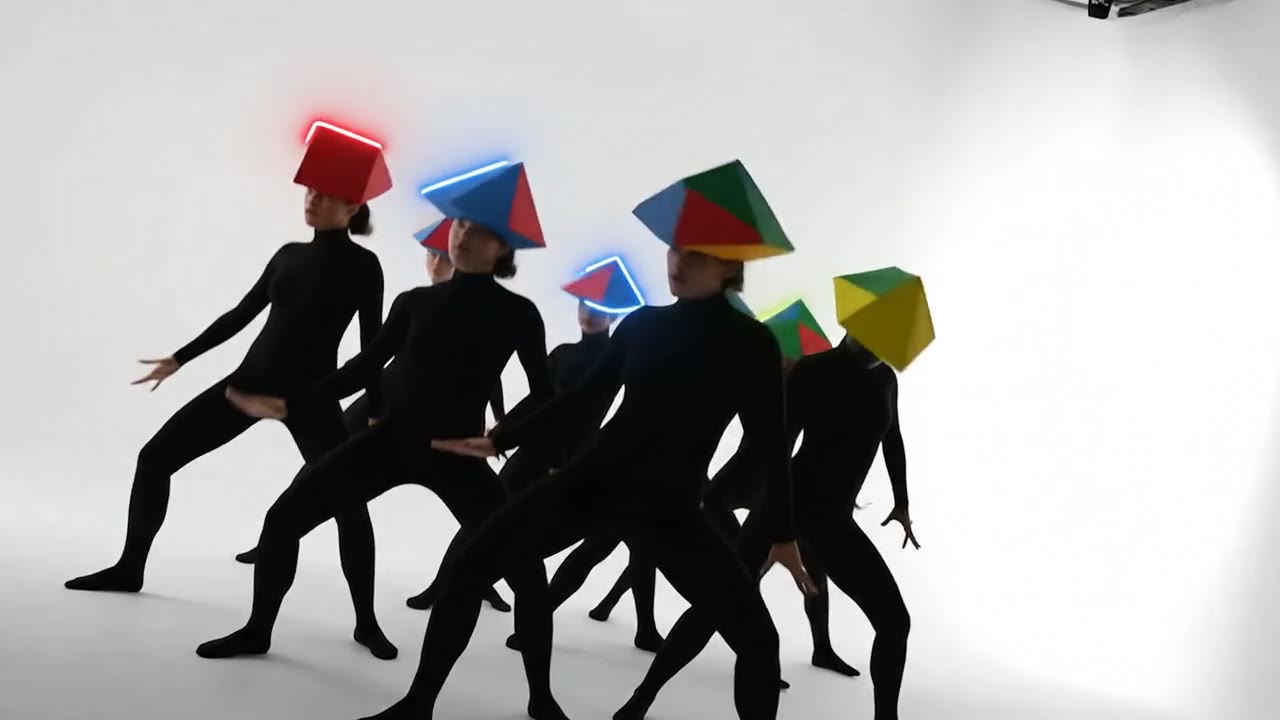
بعد
مؤثر بصري
تضيف آثار الحركة الخفيفة طاقة بدون إعادة بناء الخط الزمني.
الإدخال
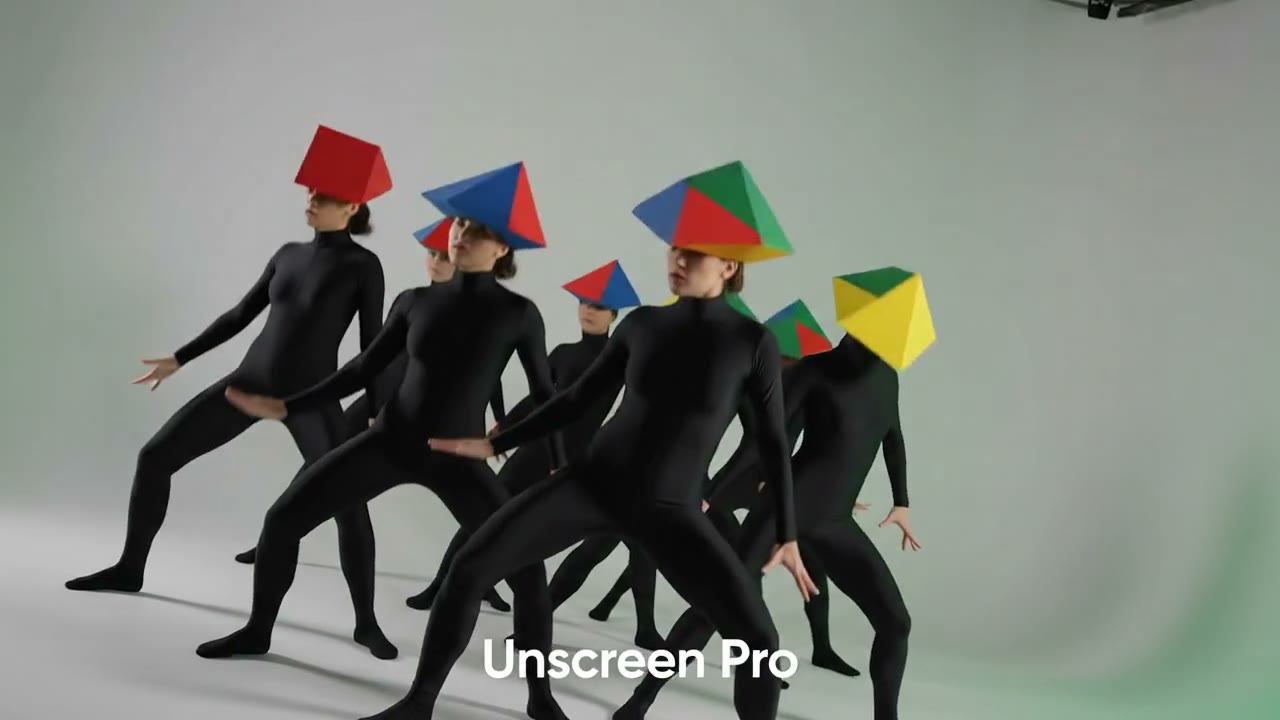
بعد
معاينة إعلان
يتحول نفس المقطع إلى اتجاه إبداعي أكثر صقلا للفيديوهات القصيرة.
تحرير فيديو احترافي بالذكاء الاصطناعي
كل ما تحتاجه للانتقال من مقطع خام إلى مفهوم فيديو أكثر اكتمالا.
استبدال المشهد
بدل البيئة بمطالبة، ودع الذكاء الاصطناعي يدمج الإضاءة والحركة والتأطير.
تحرير الكائنات
غير ملحقا ظاهرا بمطالبة بسيطة مع الحفاظ على الموضوع والتأطير.
تنسيق إعلان قصير
أنشئ معاينة ترويجية من نفس المقطع بدون فتح محرر كامل.
دورة معاينة سريعة
استخدم تعديلا قصيرا أولا لاختبار الاتجاه الإبداعي قبل التصدير.
مطالبات جاهزة
ابدأ بإعدادات للمشهد أو الكائن أو المؤثر أو الإعلان بدلا من مربع فارغ.
مساحة تحرير مخصصة
ابدأ تحرير الكائنات من هذه الصفحة، بينما تبقى صفحة الرفع مخصصة لإزالة الخلفية.
ارفع هنا، ثم حرر الكائنات والمشاهد
لمحرر الكائنات تدفق مباشر خاص به. يمكن لصفحة إزالة الخلفية أن تقترح تحرير الذكاء الاصطناعي، لكن هذه الصفحة هي المدخل الرئيسي للتعديلات بالمطالبات.
- ارفع الفيديو مباشرة في هذه الصفحة.
- اختر استبدال مشهد أو تحرير كائن أو مؤثر أو معاينة إعلان.
- عدل المطالبة وأنشئ نتيجة قصيرة محررة بالذكاء الاصطناعي.
معاينة حقيقية لتحرير كائن تم إنشاؤها من نفس تدفق الذكاء الاصطناعي
مناسب لكل صانع محتوى
سواء كنت تنشئ محتوى أو حملات أو فيديوهات منتجات أو نماذج أولية، يناسب تحرير الذكاء الاصطناعي تدفق الرفع والكتابة المباشر.
المبدعون والمدونون
انقل مقطع الحديث إلى استوديو أو مكتب أو شارع مدينة أو خلفية صانع محتوى.
مسوقو الشبكات الاجتماعية
حول فيديو خاما إلى معاينة إعلان أنظف لـ Reels وShorts وTikTok.
الوكالات والشركات
اصنع نماذج لمشاهد الحملات بدون إعادة تصوير أو أقنعة يدوية أو تركيب معقد.
المطورون والفرق
مرر نية تحرير الفيديو بالذكاء الاصطناعي عبر تدفق رفع ومطالبة مركز.
التحرير اليدوي مقابل تحرير الفيديو بالذكاء الاصطناعي
استخدم محرر الذكاء الاصطناعي للاتجاه السريع، ثم انتقل إلى الأدوات اليدوية عندما تحتاج إلى تحكم دقيق بالإطارات.
| الميزة | تدفق يدوي | Unscreen Pro |
|---|---|---|
| تدفق تحرير IA مستقل | إعداد يدوي | مدمج |
| تحرير كائن باللغة الطبيعية | غير متاح | متاح |
| إعادة تصميم المشهد | يتطلب أصولا | بالمطالبة |
| توليد تحرير قصير | تصدير يدوي | مضمن |
| تعقيد الخط الزمني | عال | منخفض |
| أفضل استخدام | تحرير دقيق | تكرار إبداعي سريع |
الأسئلة الشائعة
كل ما تحتاج معرفته حول تحرير كائنات الفيديو بالذكاء الاصطناعي.
ما هو محرر كائنات الفيديو بالذكاء الاصطناعي في Unscreen Pro؟+
هو تدفق تحرير بالذكاء الاصطناعي يتيح لك رفع فيديو ووصف تغييرات المشهد أو الكائن أو المؤثر أو النمط الترويجي بلغة بسيطة.
هل هو نفس تحرير الكائن إطارا بإطار؟+
لا. إنه مصمم للمعاينات القصيرة والتحويلات باللغة الطبيعية، وليس للروتوسكوب أو التركيب اليدوي الدقيق.
لماذا أستخدم تحرير الكائنات بالذكاء الاصطناعي؟+
لأن المبدعين يحتاجون غالبا إلى اختبار اتجاه سريع: تغيير عنصر، تجربة مشهد، إضافة مؤثر، أو تحويل مقطع إلى فكرة إعلان.
ما مدة معاينات الذكاء الاصطناعي؟+
التدفق محسن للنتائج القصيرة، مما يحافظ على سرعة التوليد ويتوافق مع حدود تحرير الفيديو الحالية.
ما المطالبات التي تعمل بشكل أفضل؟+
المطالبات القصيرة والمحددة تعمل أفضل، مثل إضافة قبعات ملونة أو وضع الموضوع في استوديو بودكاست.
هل أنت مستعد لتحرير الفيديو بالذكاء الاصطناعي؟
ابدأ بمقطع حقيقي، اختر إعداد تحرير، وصف تغيير الكائن أو المشهد أو المؤثر أو الإعلان الذي تريده.