AI Video Object Editor
Upload a video, describe the change, and use AI to edit visible objects, replace scenes, add subtle effects, or create a polished short-form ad preview.
Upload and prompt
Upload your video
Drop a short clip here or choose a file.
Simple, specific prompts work best for object edits and scene changes.
Result preview
A sample output appears here before you upload a video.
Built for creator, marketing, and product video workflows
Prompting is faster than rebuilding the scene by hand
Traditional object edits mean masks, keyframes, replacements, and retiming. Unscreen Pro keeps the workflow closer to what users already do: upload, choose a preset, then describe the change.
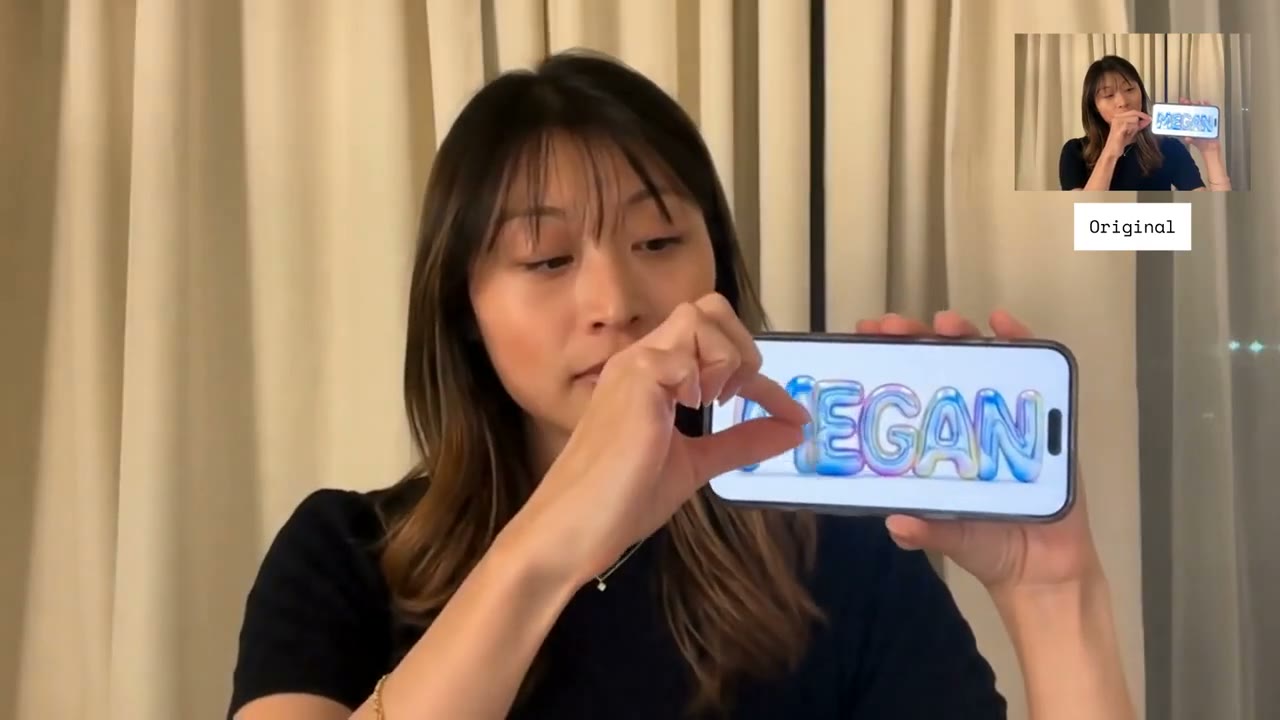
Short previews for fast creative direction
Start with a short clip, test one change, and only export the final direction once it looks right.
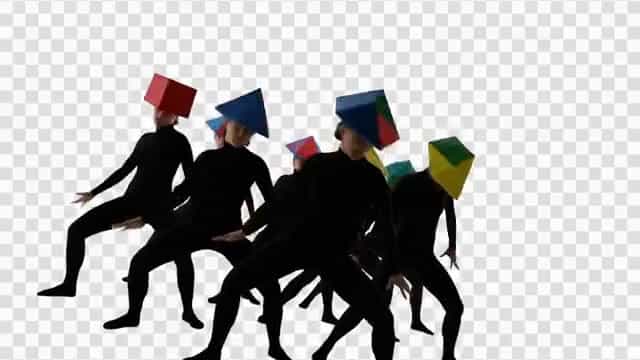
Input
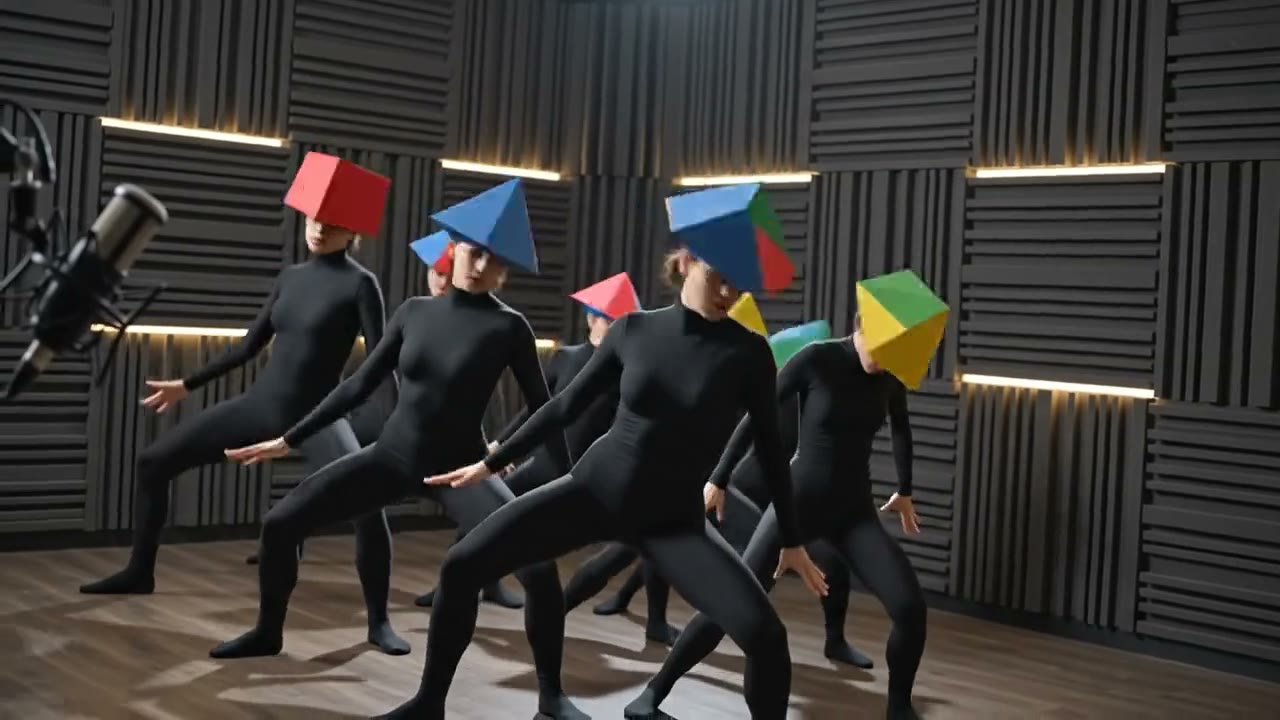
After
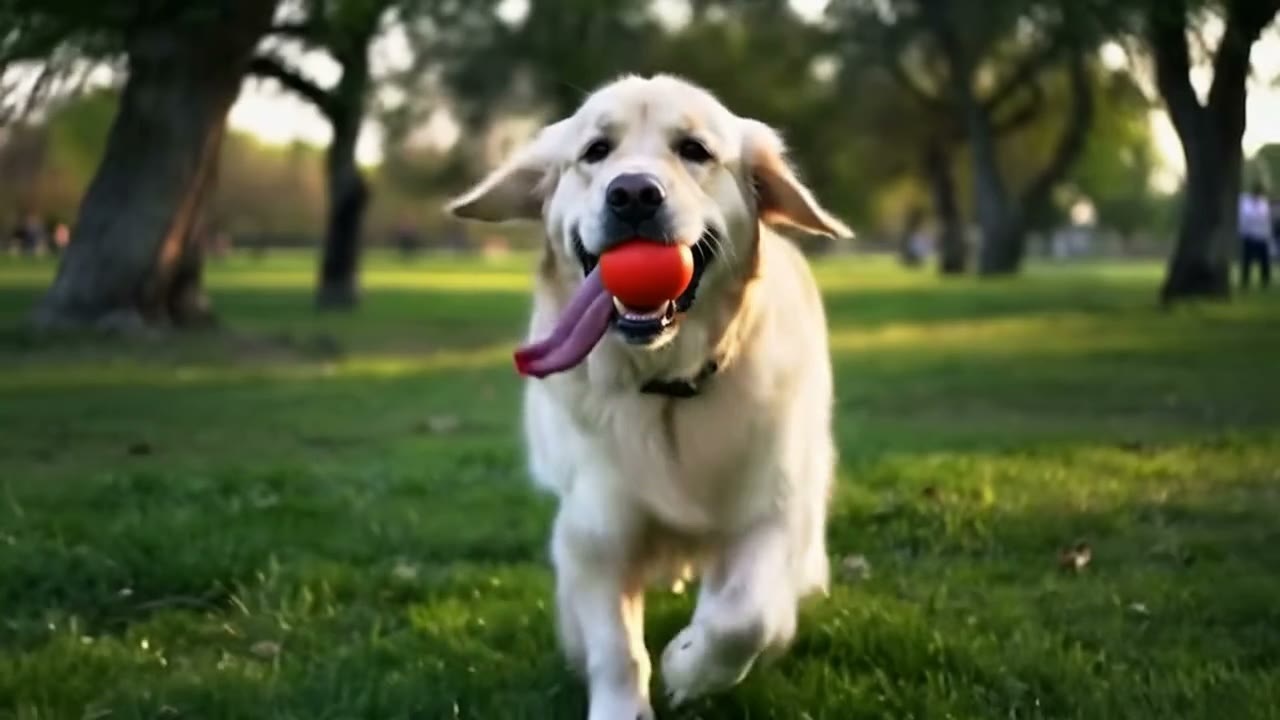
Scene replace
An input clip becomes a real studio-style environment with lighting and shadows.
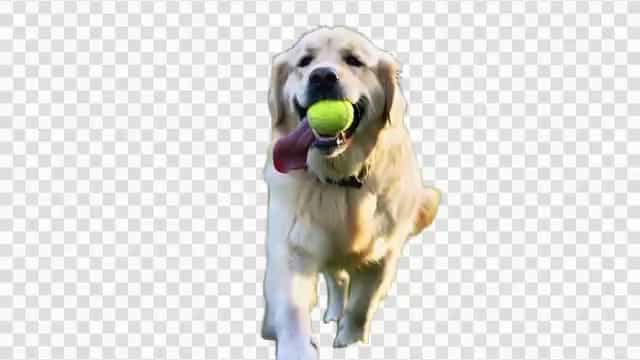
Input
After
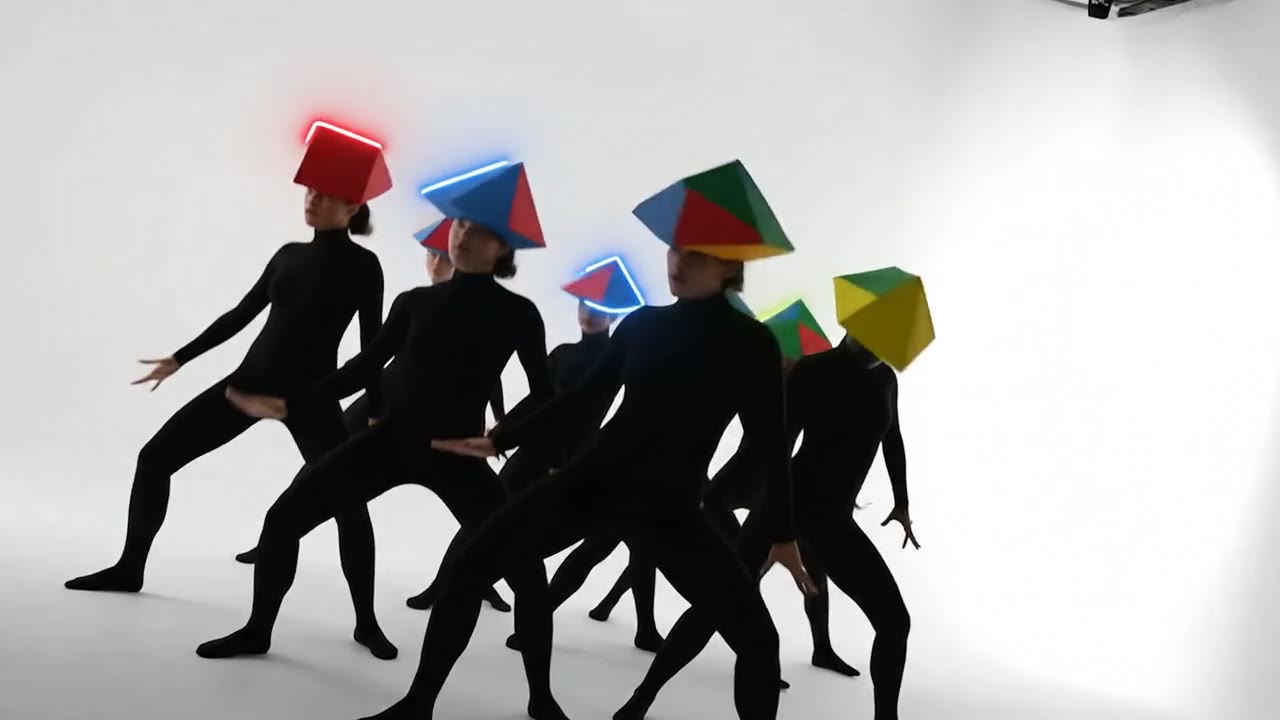
Object edit
One visible object changes while the subject motion stays intact.
Input
After
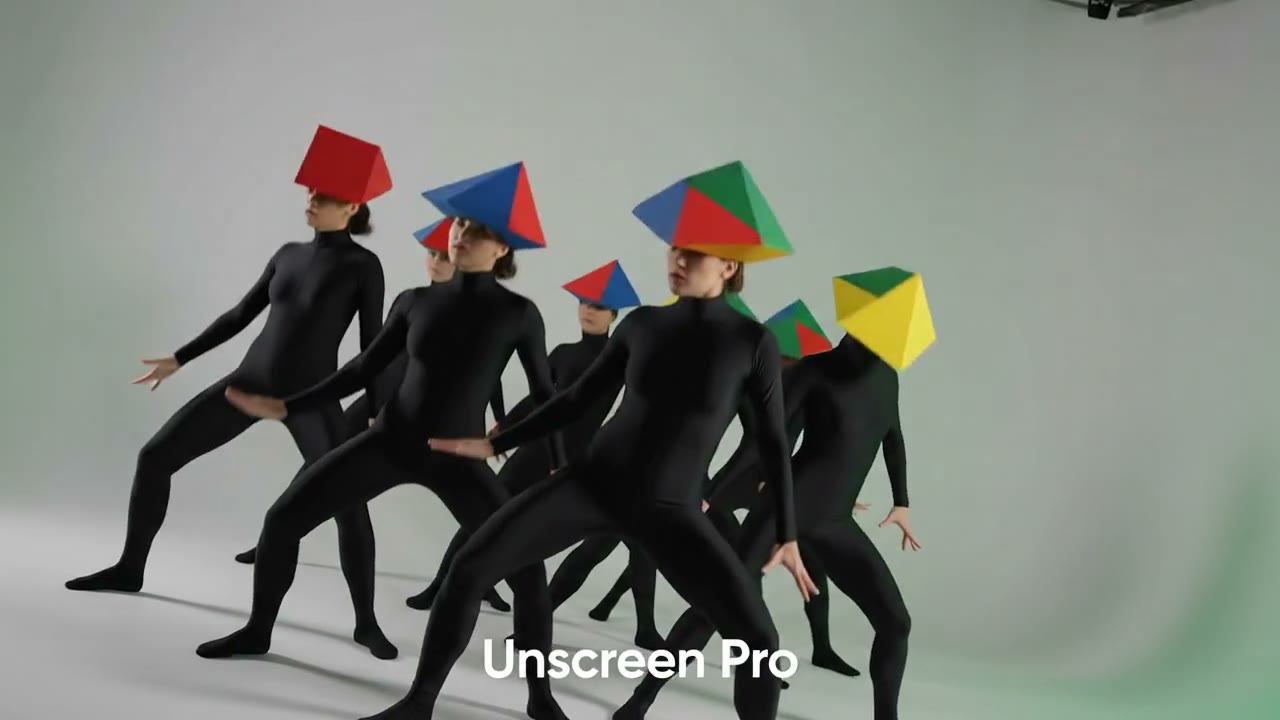
Visual effect
Subtle motion trails add energy without rebuilding the timeline by hand.
Input
After
Ad preview
The same uploaded clip becomes a more polished short-form creative direction.
Professional AI video editing
Everything you need to move from a raw clip to a more finished video concept.
Scene replacement
Swap the environment with a prompt, then let AI blend lighting, motion, and framing.
Object edits
Change one visible prop with a simple prompt while preserving the subject and framing.
Short-form ad styling
Create a polished promo preview from the same uploaded clip without opening a full editor.
Fast preview loop
Use a short edit first so users can test creative direction before exporting.
Prompt presets
Start with scene, object, effect, or ad presets instead of an empty prompt box.
Dedicated editor workspace
Start object edits on this page, while the upload page keeps its background-removal workflow.
Upload here, then edit objects and scenes
The object editor has its own direct workflow. The background removal upload page can still recommend AI editing, but this page is the main place to create prompt-based edits.
- Upload a video directly on this page.
- Choose scene replace, object edit, effect, or ad preview.
- Adjust the prompt and generate an AI-edited short result.
Real object-edit preview generated from the same AI edit flow
Perfect for every creator
Whether you are creating content, campaigns, product videos, or prototypes, AI editing fits a direct upload-and-prompt workflow.
Creators & vloggers
Move a talking-head clip into a studio, desk setup, city street, or creator backdrop.
Social media marketers
Turn a raw product or founder video into a cleaner ad preview for Reels, Shorts, and TikTok.
Agencies & businesses
Prototype campaign scenes without reshoots, manual masks, or hand-built compositing timelines.
Developers & teams
Route AI video edit intent through one focused upload and prompt flow.
Manual editing vs AI video editing
Use the AI editor for fast direction, then move to manual tools only when you need frame-perfect control.
| Feature | Manual workflow | Unscreen Pro |
|---|---|---|
| Standalone AI edit flow | Manual setup | Built in |
| Natural-language object edit | Not available | Available |
| Scene redesign | Requires assets | Prompt-based |
| Short AI edit generation | Manual export | Included |
| Timeline complexity | High | Low |
| Best fit | Precision editing | Fast creative iteration |
Frequently asked questions
Everything you need to know about AI video object editing.
What is the AI video object editor in Unscreen Pro?+
It is an AI editing flow that lets you upload a video and describe scene, object, effect, or promo-style changes in plain language.
Is this the same as frame-by-frame object editing?+
No. It is designed for short AI-edited previews and natural-language transformations, not precise manual rotoscoping or timeline-based compositing.
Why use AI object editing for video?+
Creators often need fast direction before opening a full editor: change a prop, try a new scene, add an effect, or turn a raw clip into a more polished short-form ad concept.
How long can AI-edited previews be?+
The workflow is optimized for short generated results. This keeps generation faster and aligned with current AI video editing limits.
What prompts work best for AI video editing?+
Short, specific prompts work best, such as adding colorful hats above people or putting a subject in a podcast studio. Treat this as a fast creative preview flow rather than a frame-perfect manual editing tool.
Ready to edit your video with AI?
Start with a real clip, choose an edit preset, and describe the object, scene, effect, or promo change you want.